Getting started with Content Credentials
This technical introduction explains the concepts behind the Content Authenticity Initiative (CAI) open-source SDK and the basic workflow for reading, validating, and creating Content Credentials.
The SDK implements C2PA functionality for supported asset formats and platforms. Feature coverage depends on the library and release; not every feature in the specification is supported.
Important terminology
These simplified definitions introduce the main concepts. For more detail and additional terms, see the Glossary.
Content provenance is information about the creation, authorship, and editing of a digital asset. Content Credentials record provenance with cryptographic signatures and content bindings that make tampering detectable.
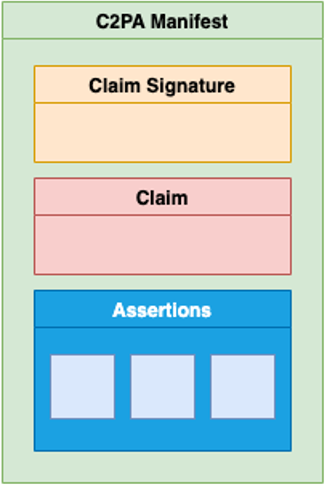
As illustrated below, a manifest contains assertions about an asset, a claim that references those assertions, and a digital signature on the claim.
Actor: A person, hardware device, or software product involved in an asset's lifecycle, such as a camera, editing application, or cloud service.
Asset: Digital content, such as an image, video, or audio file or stream. The SDK supports specific asset formats.
Action: An operation performed on an asset, such as creating, cropping, or adjusting it.
Assertion: Structured information about an asset. For example, an actions assertion can record editing operations. See the standard C2PA assertions.
Certificate Authority (CA): An organization that issues digitally signed certificates under a defined certificate policy.
Certificate: A digitally signed document that binds a public key to a subject under the issuer's policy. A validator must check the certificate and its chain against an appropriate trust policy.
Claim: The data that is signed in a manifest. It references assertions using cryptographic hashes, making changes to those assertions detectable.
Claim signature: A digital signature created with the signer's private key and verified using the corresponding public key.
Content binding: Information associating a manifest with content. A hard binding uses cryptographic hashes of protected content. A soft binding, such as a watermark or perceptual fingerprint, helps locate associated manifests even when metadata has been removed or content has changed.
Ingredient: A source asset used to create or edit another asset, potentially carrying its own provenance. For example, an edited photograph can reference the original photograph as a parent ingredient.
Manifest (C2PA manifest): A set of assertions, a claim, and a claim signature describing an asset's provenance.
Manifest store: A collection of manifests associated with an asset. The active manifest describes the current asset and contains content bindings that a validator checks against it.
How it works
A signed manifest store uses the binary JPEG universal metadata box format (JUMBF). The SDK provides JSON definitions for building manifests and JSON reports for reading them; these are interfaces to the binary representation, not the signed artifact itself. See Working with manifests.
The SDK records cryptographic hashes of protected asset content in binding assertions. The signer signs the claim using a private key. A validator verifies the signature using the public key in the signing certificate, checks the referenced assertions, and compares the content bindings against the asset. Changes to protected content invalidate the hard binding.
A C2PA-enabled editing tool creates a new signed manifest for its output, recording relevant actions and referencing source assets as ingredients. It does not simply rewrite the original signed claim.
Successful validation provides evidence of integrity and, when the signer is trusted under the validator's policy, the source of the signature. It does not prove that the depicted content or every assertion is true or complete. Missing Content Credentials do not, by themselves, indicate that content is false.
Basic SDK workflow
Once you've chosen the SDK library to use based on your runtime environment, the basic SDK workflow is:
- Read and validate an asset with a Reader. Distinguish missing from invalid Content Credentials. Inspect the validation results and the
Invalid,Valid, orTrustedstate; see Validating manifests. - Build and sign Content Credentials with a Builder, adding relevant assertions and ingredients and supplying a signer.
- Preserve and display the resulting manifest store and validation results using the storage and UI guidance below.
In the Rust library, a Context configures verification, trust, network access, and signers. Configure appropriate trust anchors and remote-fetch policies for your application. Equivalent APIs and feature availability vary across language libraries and releases.
Introduction to public key infrastructure
For a video introduction to certificates and key management in the C2PA ecosystem, see A closer look at private keys and certificates from the Content Credentials Foundations course.
For authentication, C2PA uses public key infrastructure (PKI) and X.509 certificates. The private key creates digital signatures; the corresponding public key verifies them. This does not encrypt the asset or restrict access to it.
A certificate binds the signing public key to a subject under the issuing CA's policy. The manifest includes a certificate chain that lets a validator check signatures back to a configured trust anchor, which can be a root or intermediate CA. A valid chain alone does not establish content integrity or factual truth; the other validation checks still matter.
Signing and certificates
Signing requirements differ between prototyping and production:
- Prototype with development credentials. Test certificates and keys let you exercise signing, but do not establish public trust and must not be used in production.
- Obtain an appropriate production certificate. Follow the C2PA certificate requirements and the requirements of your intended trust ecosystem. Conforming generator products must use a certificate chaining to the C2PA trust list; a generic email or document-signing certificate is not automatically sufficient.
- Protect the private key. Use a suitable signer backed by a hardware security module (HSM) or key management service (KMS) for production. A certificate signing request (CSR) contains the public key; it does not require sharing your private key with the CA. Never include production private keys in browser code or distributed applications.
A trusted time-stamp from a time-stamping authority (TSA) can establish that the signature existed while the signing certificate was valid, supporting verification after certificate expiry. This is different from a date recorded in an assertion. See Time-stamps.
For the development-to-production workflow, see Signing and certificates.
Trust lists
The C2PA trust list contains certificate trust anchors for conforming generator products. A separate TSA trust list supports time-stamp validation. Validators must apply the appropriate trust policy; a cryptographically valid signature is not automatically from a trusted signer.
For current lists, legacy interim trust list support, and tool-specific behavior, see Trust lists.
Identity
The identity of the manifest signer is not necessarily the identity of the content creator. A signing certificate may identify an application, device, or organization rather than the person who captured or edited an asset.
The Creator Assertions Working Group (CAWG) defines identity assertions that bind identity information and roles to an asset. Their verification and issuer trust are distinct from the enclosing manifest's signature validation. See Reading CAWG identity assertions.
Attaching and storing manifest data
The manifest store must remain associated with its asset, but it does not have to be embedded. Available options depend on the asset format and SDK:
| Storage | How it works |
|---|---|
| Embedded | The manifest store is stored inside the asset and travels with the file. |
| Sidecar | A separate .c2pa file accompanies the asset. Keep both files together and supply them to the reader as required by your SDK. |
| Remote | The asset contains a reference to an externally-hosted manifest store. The reader needs access to that location. |
Storing a manifest in file
Embedding keeps the manifest store self-contained, but increases file size by an amount that depends on assertions, thumbnails, certificates, and other resources. It avoids fetching the manifest itself; trust, revocation, or other resource checks may still require network access, depending on configuration.
Storing a manifest in the cloud
Any developer can create a cloud manifest storage system to host remote manifest stores; this is not limited to Adobe services. Use HTTPS and preserve the reference in the asset. Adobe Content Credentials Cloud is a separate service used by Adobe tools, not a prerequisite for remote storage.
Remote storage alone does not ensure recovery if the reference is stripped. Durable Content Credentials combine stored manifests with soft bindings and a lookup service to help rediscover provenance. Finding a matching manifest is not a substitute for checking its signature and applicable content bindings.
Displaying manifest data
For video walkthroughs on displaying Content Credentials, see the following from the Content Credentials Foundations course:
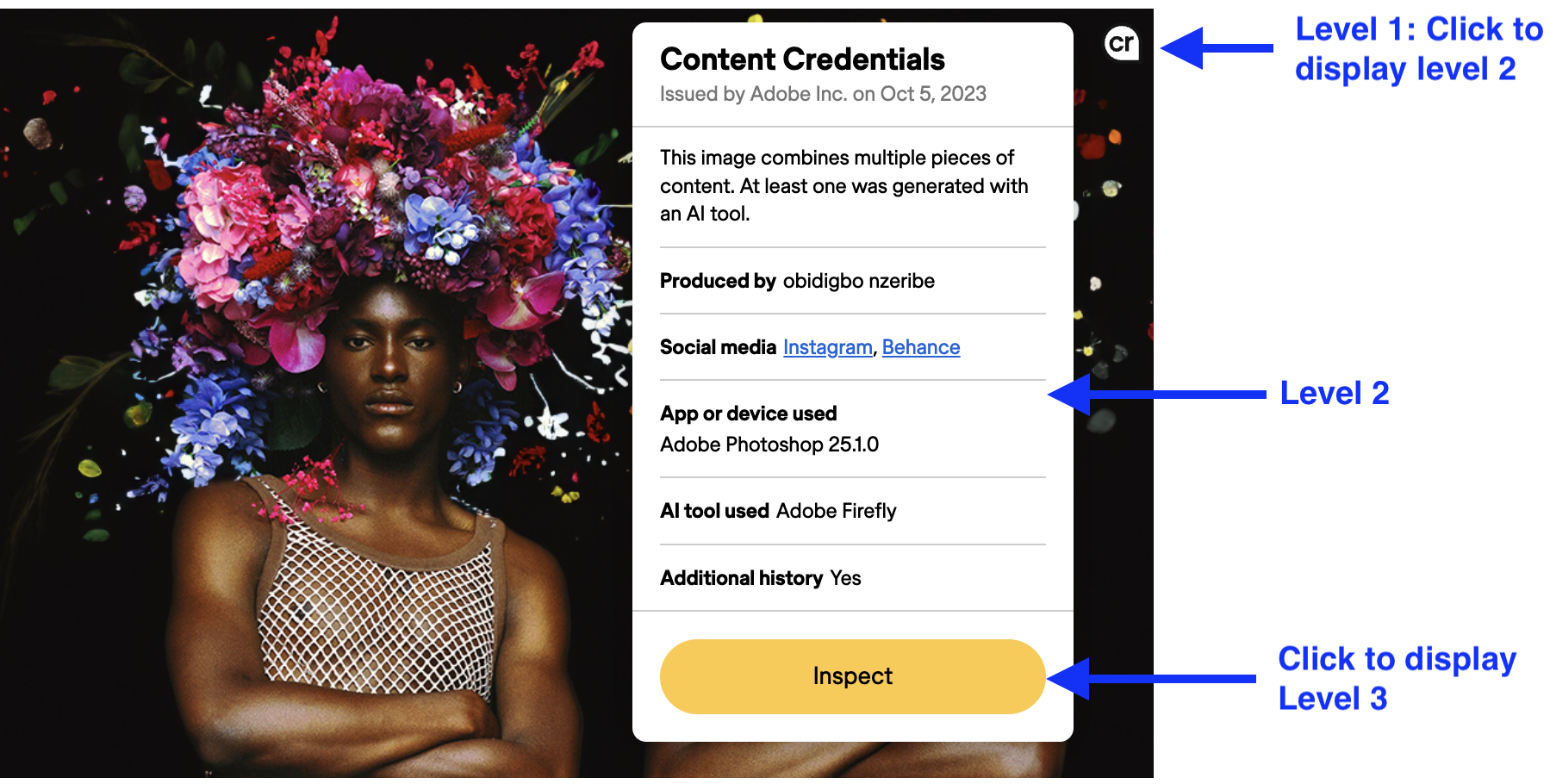
Present provenance and validation results meaningfully rather than exposing raw manifest data alone. The C2PA UX recommendations describe four levels of disclosure:
- Level 1: Indicates that manifest data is present and whether it has been validated.
- Level 2: Summarizes the manifest data enough to describe how the asset came to its current state.
- Level 3: Provides a detailed display of relevant manifest data, including ingredient manifests.
- Level 4: Provides the complete data including full detail of signatures and trust signals, for sophisticated, forensic investigatory use.
Your UI should distinguish missing credentials, validation failures, and signer trust. Do not present the presence of a manifest or the Content Credentials pin as proof of trust.
The illustration below shows one possible progressive-disclosure interface:
- The Content Credentials pin
 shown over the image indicates that the image has Content Credentials (level 1).
 - Clicking on the pin displays level 2 information, and an Inspect button.
- Clicking the Inspect button opens a detailed view, such as Adobe Content Authenticity Inspect, for level 3 information.